 bit
bitPhone settings
First run
& permissions
Prepare bitCaller for calls, including incoming calls while the screen is off.
Getting started
- Install the app and open it. Read the privacy information.
- Add an account with your setup code or enter your provider’s details. See the account setup instructions.
- Allow microphone access and notifications when Android asks.
- In bitCaller, open Settings → Phone permissions and work through the settings below.
You can also reach the system’s app settings by holding the app icon and choosing App info or the ⓘ symbol. Option names vary between phones. The screenshots show Polish labels; the orange outline marks the relevant control. Tap an image to enlarge it.
Microphone
Purpose: sends your voice to the other person during a call.
Without permission: bitCaller cannot make a call using the microphone.
Where: App info → Permissions → Microphone → Allow only while using the app. When Android asks, allow access while using the app rather than just once.

Notifications and the incoming call screen
Purpose: show incoming calls, answer controls and availability status.
Without permission: you may not see an incoming call, especially when bitCaller is in the background.
Where: select Allow notifications in bitCaller. Android 13 and later may show a permission prompt; choose Allow. On older Android versions, check the switch in system settings.
- Open System notification settings from bitCaller’s permissions screen.
- Enable All bitCaller notifications.
- Keep both Incoming calls and Call screen and banner categories enabled.
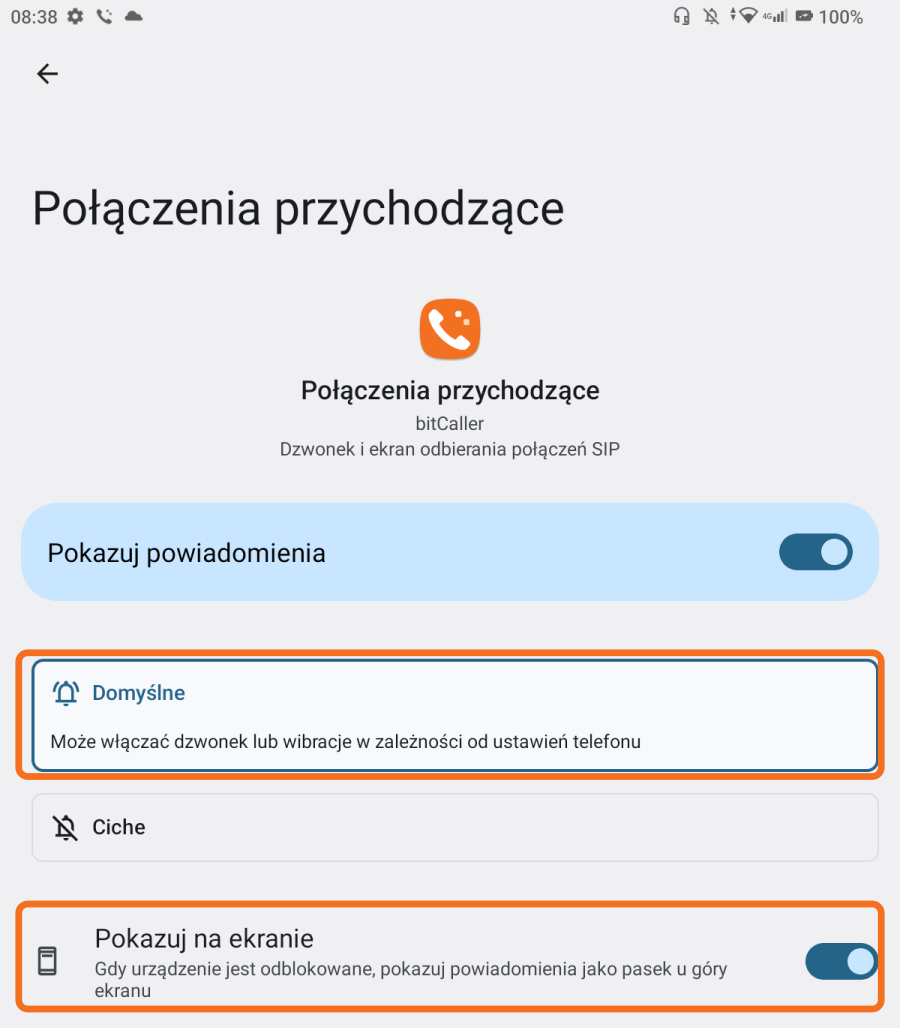
- Tap each category name. Select Default if you want sound or vibration, and enable Pop on screen if available. Check both categories.
Your phone’s silent mode and Do not disturb still apply. Set the ringtone in bitCaller; Android’s category settings allow the notification and banner to appear.

Battery and background use
Purpose: keeps the account available while the screen is off.
Without an exception: the system may put the app to sleep, delaying or preventing incoming calls.
Where: select Disable battery optimisation in bitCaller and accept the request for background operation. If the exception is already enabled, the button opens App info.
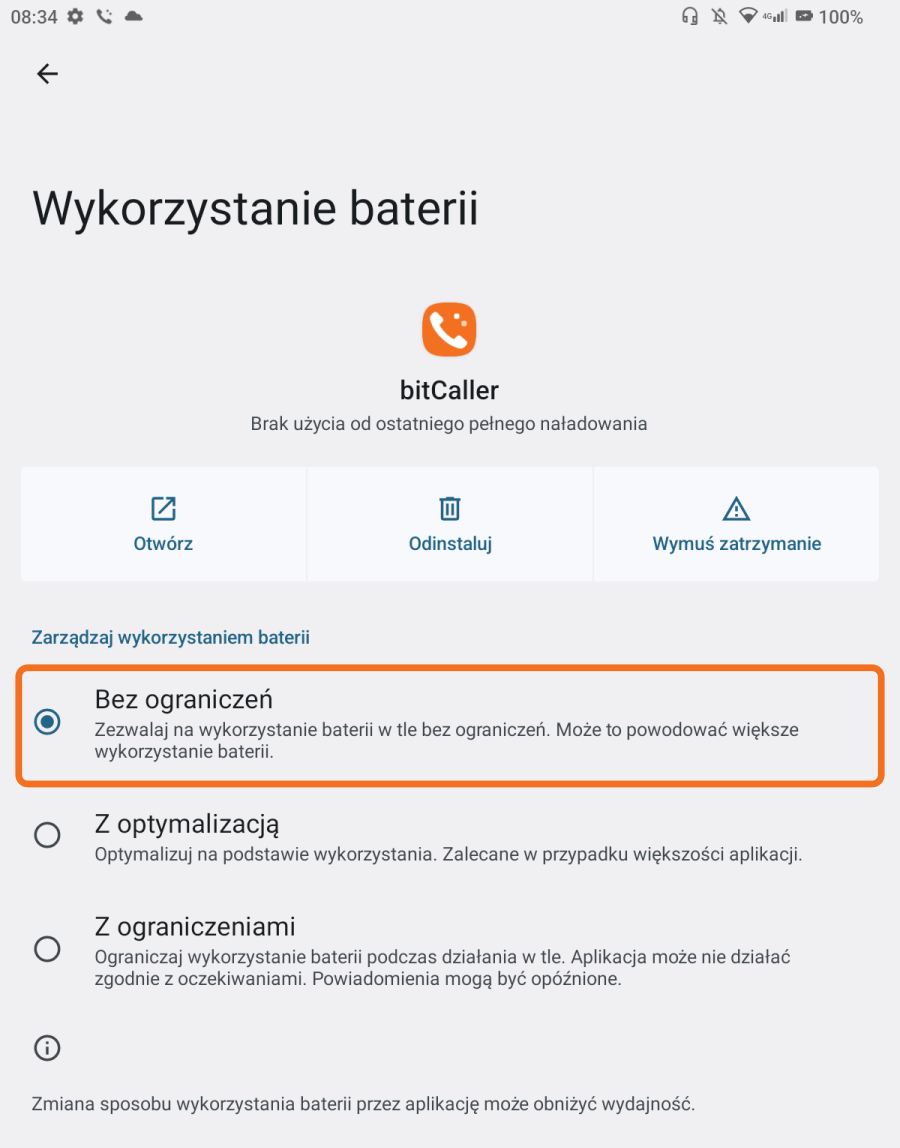
- DOOGEE / Android 13: App info → Battery → Unrestricted.
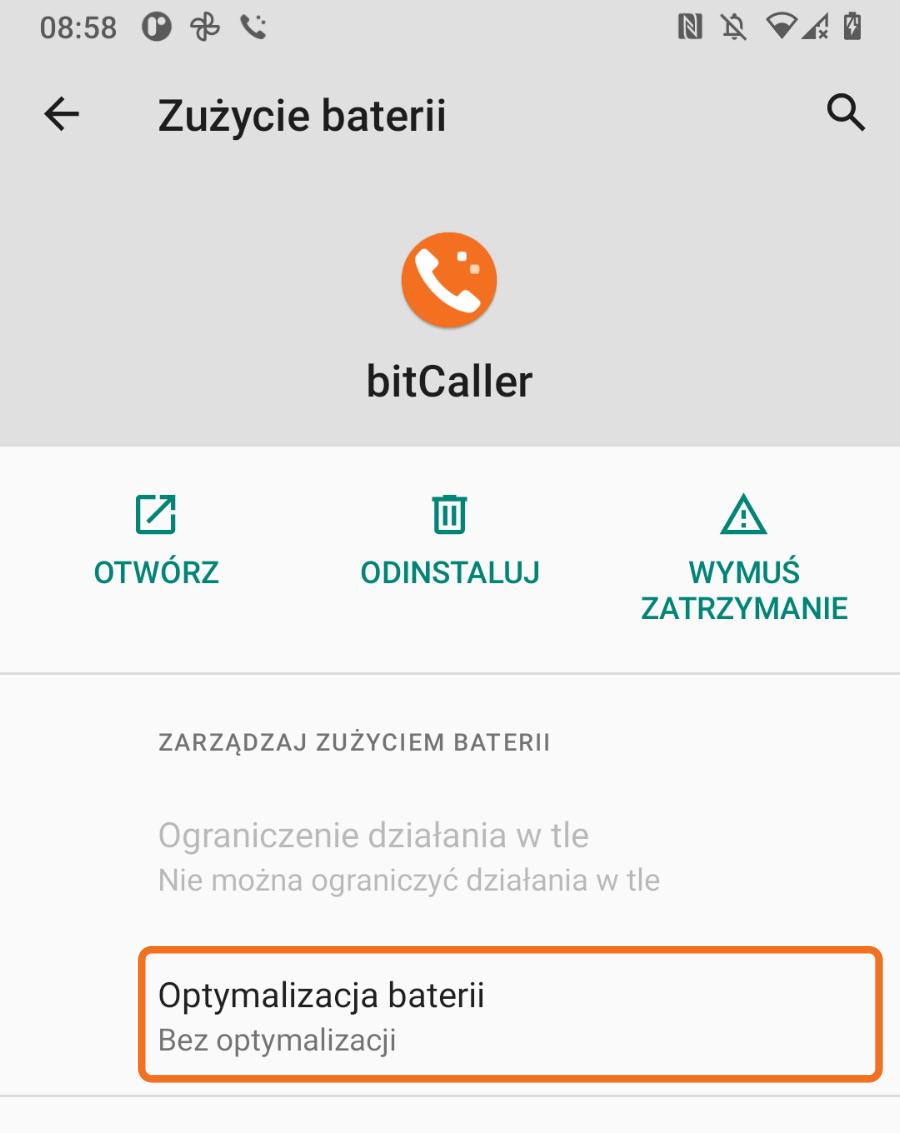
- CAT / Android 11: App info → Advanced → Battery → Battery optimisation. The status should say Not optimised. To change it, open the list of all apps, select bitCaller and choose Don’t optimise.
Do not select Restricted. Also check manufacturer options such as Unrestricted after allowing the battery exception in the app.
Full-screen notifications
Purpose: allow the incoming call screen to appear on a locked phone.
Without permission: Android may show only a banner or a normal notification instead of the full screen.
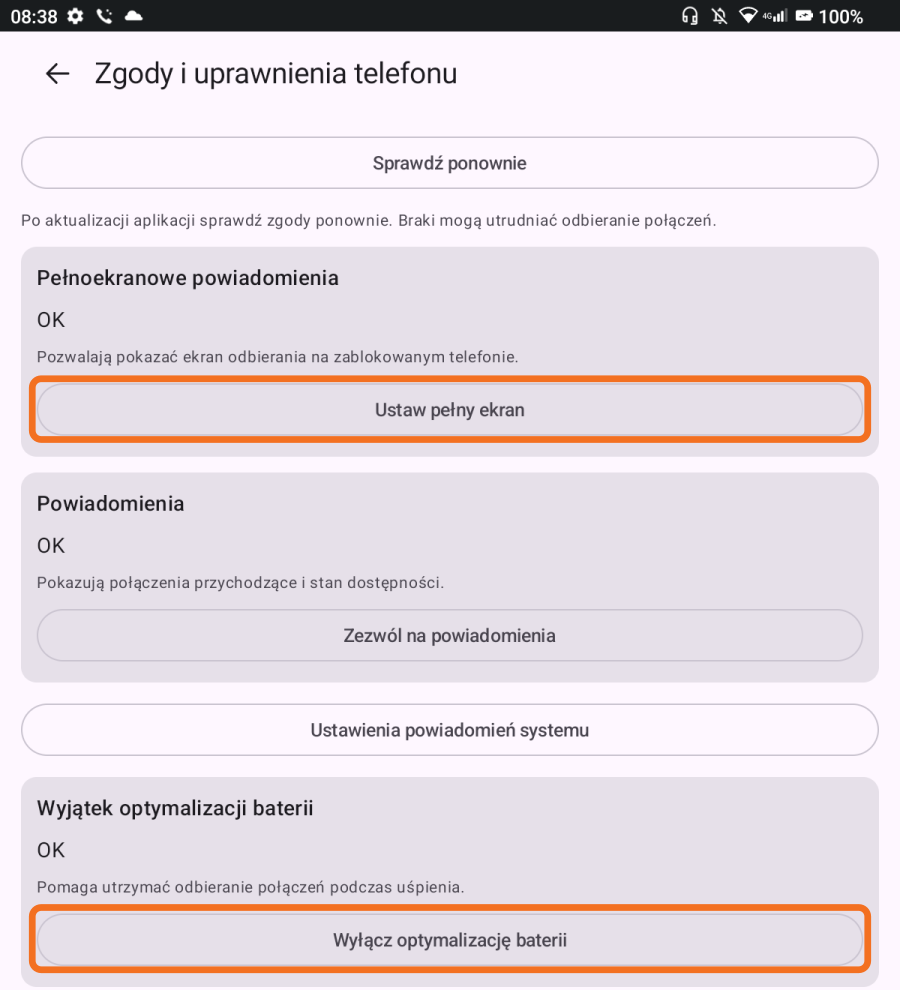
Where: bitCaller → Settings → Phone permissions → Set up full screen. On Android 14 and later, allow full-screen notifications for bitCaller. You can also search system settings for full-screen notifications under special app access.
Android 11 and 13 do not have this separate switch. The button opens app notification settings instead. The DOOGEE screenshot highlights the full-screen and battery exception buttons.
Lock screen notifications
Purpose: let you notice and answer a call without unlocking and finding the app.
Without them: the notification may be hidden on the lock screen even if other permissions are enabled.
Where: Phone settings → Notifications → Notifications on lock screen. Choose to show notifications. On DOOGEE, select Show conversations, default and silent. On other phones, also check bitCaller’s call notification category.
You can still hide sensitive notification content. You do not need to disable your PIN, fingerprint or screen lock.

Contacts — optional
Purpose: let you choose numbers from your phone book and display caller names.
Without permission: you can still enter numbers manually, use the system contact picker and make calls.
Where: App info → Permissions → Contacts → Allow. You can also grant permission when bitCaller asks while you are using contacts.

Phone and mobile call handling — optional
Purpose: phone state access lets the second call setting take an ongoing mobile call into account. Call management permission lets bitCaller end that call when you choose to end the current call and answer.
Without these permissions: SIP calls in bitCaller still work, but the app cannot fully handle a SIP call arriving during a mobile call.
Where: on bitCaller’s permissions screen, choose Allow mobile call handling. Android may combine both permissions in one prompt about phone access or managing calls. Choose Allow if you want this feature. You can check it later under App info → Permissions → Phone.
bitCaller’s permissions screen separately shows phone state access and the ability to end a call on request. You do not need to make bitCaller your default phone app.


Bluetooth headsets — optional
Purpose: nearby device access lets you select a connected Bluetooth headset for call audio.
Without permission: Bluetooth selection may be unavailable on Android 12 and 13. Other audio routes do not require this permission.
Where: App info → Permissions → Nearby devices → Allow. On Android 12 and 13, the app may ask when you select Bluetooth. On older versions and from Android 14 onwards, this version of bitCaller does not request this separate permission.

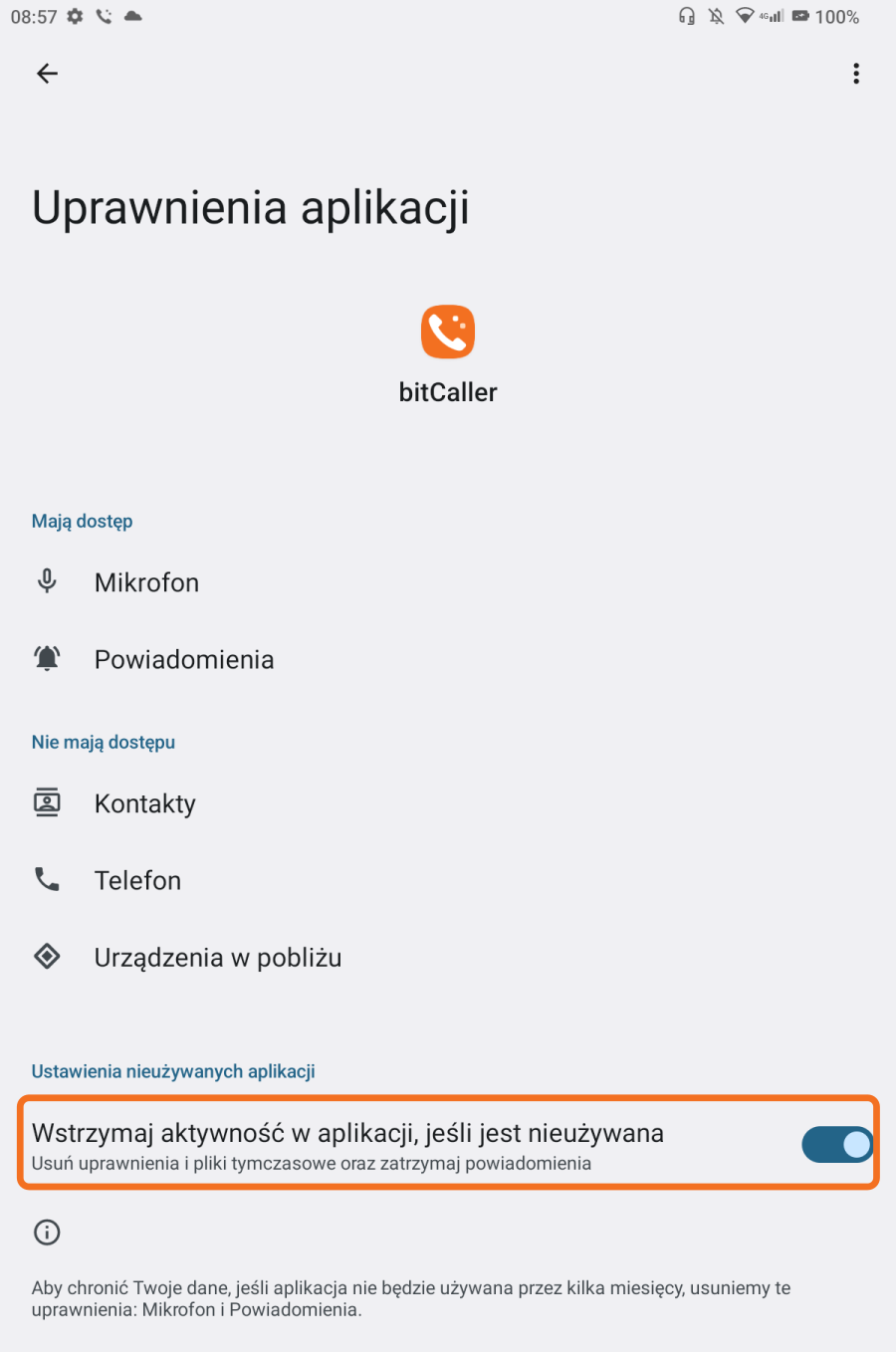
Keep the app active when unused
Purpose: prevents automatic removal of permissions if you do not open bitCaller for a long time.
If the pause option stays on: after a long period without use, Android may revoke permissions and stop notifications.
Where: App info → Permissions → Pause app activity if unused. Turn this off if bitCaller should remain available for incoming calls. Some versions call it Remove permissions if app isn’t used.
Xiaomi, MIUI and HyperOS
Also check the manufacturer’s additional settings on these phones. Buttons on bitCaller’s Phone permissions screen open them. Option names and locations depend on the MIUI or HyperOS version.
- Autostart: Phone settings → Apps → Permissions → Background autostart (or Autostart) → enable bitCaller. This allows the app to start in the background; without it, the system may block startup.
- Battery: Settings → Apps → Manage apps → bitCaller → Battery saver → No restrictions. Without this, MIUI may close the app even with a system battery exception.
- Lock screen: in bitCaller’s app information, open Other permissions → Show on lock screen and allow it. Without permission, the call screen may not appear on a locked phone.
- Background windows: in the same place, allow background pop-up windows. Without permission, the system may prevent the incoming call screen from appearing automatically.
- Notifications: enable lock screen and floating notifications for bitCaller. Also check both call categories described above.
After checking these options, return to bitCaller and select the button confirming that you checked the HyperOS settings. The app cannot read all of these settings itself; this button records your manual check.
Final checks
- Return to bitCaller’s permissions screen and choose Check again. Check notifications, full screen and the battery exception.
- Check that the SIP account is Available and that your phone has an Internet connection.
- After restarting your phone, unlock it once so the app can access saved account data. If the system stopped the app, open bitCaller.
- After an app or system update, revisit these settings if you see a reminder or have trouble receiving calls.
If the problem continues, use the app’s problem report option.